Manage scorecards
Define scorecards
Port offers a variety of ways to create, edit and delete scorecards:
- UI
- API
- Terraform
You can create, edit, or delete scorecards either from the catalog page or the Data model page.
- From the ''Data model'' page
- From the ''Catalog'' page
Whether you create, edit, or delete a scorecard, follow the next steps, then proceed with the relevant section below.
-
Go to the Data model page of your portal.
-
Expand the relevant blueprint, and click on the
Scorecardstab.
To create a new scorecard:
-
Click on the
+ New scorecardbutton.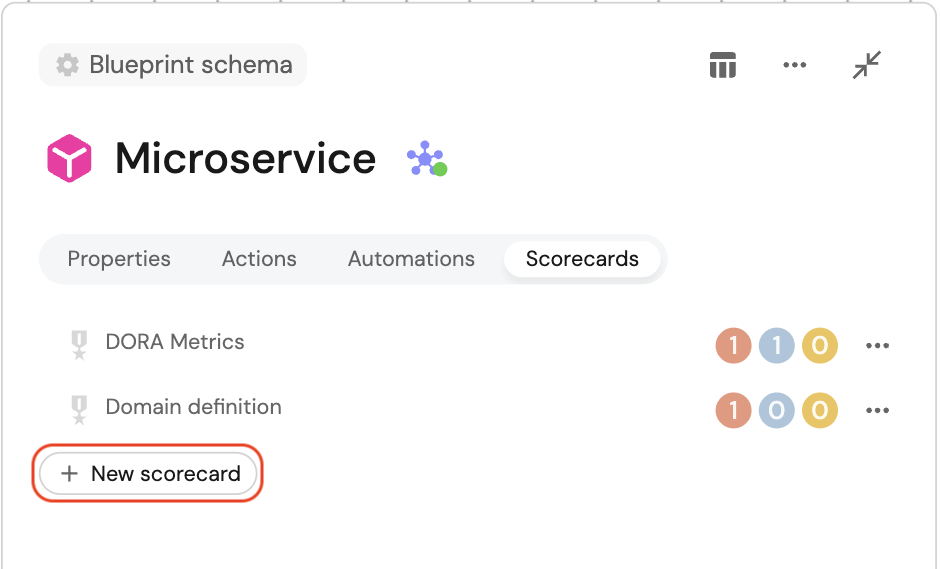
-
In the Basic Details tab, specify the scorecard's basic details:
Title- The scorecard's title.Identifier- The scorecard's unique identifier (must be unique among all scorecards).Blueprint- This field will already be preselected and non-editable, set to the blueprint you expanded.Filter- Filter which entities the scorecard applies to.
-
In the Rules tab, define the scorecard's rules:
- Add or remove levels, as well as edit their names.
- Add rule elements to each level:
Title- The rule's title.Identifier- The rule's identifier.Description- The rule's description.Conditions- The rule's conditions.
-
Click
Saveto create the scorecard.
To edit an existing scorecard
-
Click on the
...button in line that represents your scorecard, then chooseEdit.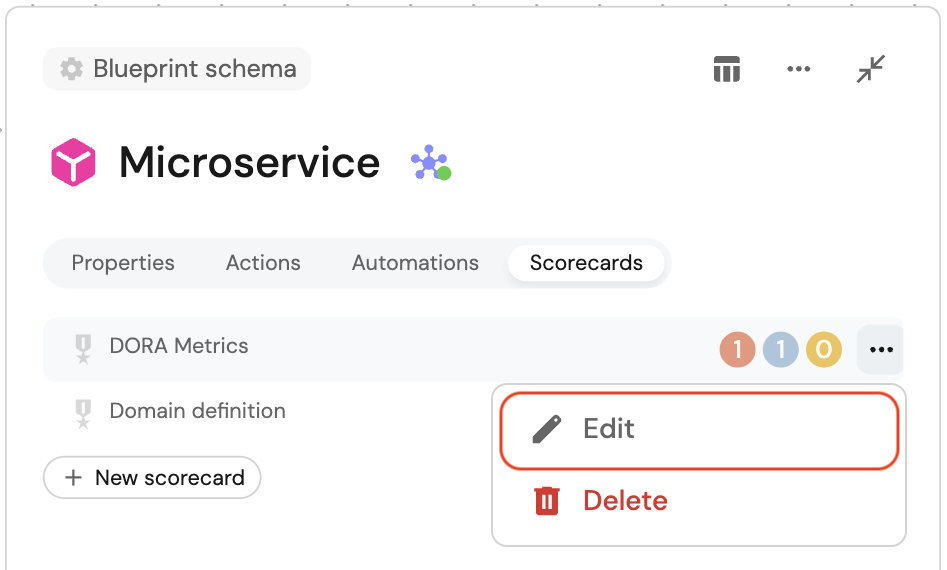
-
Make your changes to the scorecard.
-
Click
Saveto apply your changes.
To delete a scorecard:
A Scorecard cannot be restored after deletion!
-
Click on the
...button in line that represents your scorecard, then chooseDelete.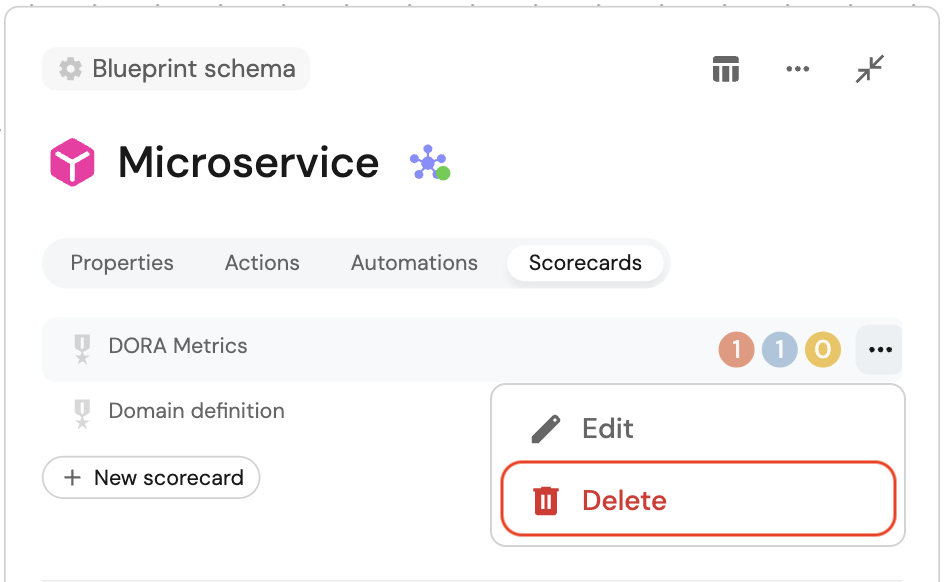
-
Confirm the deletion in the pop-up window.
Whether you create, edit, or delete a scorecard, follow the next steps, then proceed with the relevant section below.
-
Navigate to the Software Catalog page.
-
Go to a Scorecard catalog page in your catalog section.
Creating a scorecards catalog pageIf you don't have a scorecards catalog page, you can create one. To learn more, refer to the catalog page documentation.
To create a new scorecard:
-
Click the
+ Scorecardbutton in the top right corner of the page.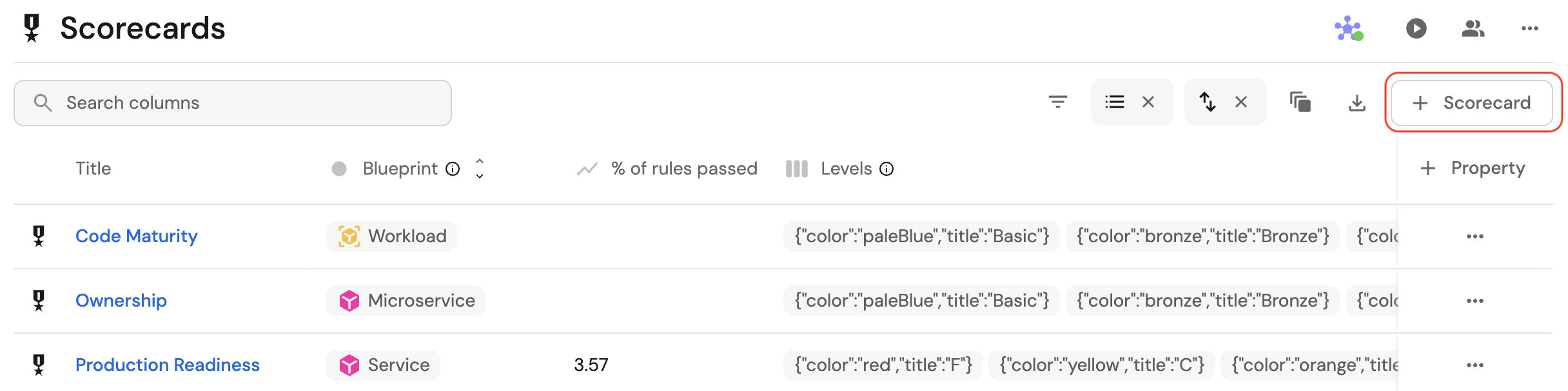
-
In the Basic Details tab, specify the scorecard's basic details:
Title- The scorecard's title.Identifier- The scorecard's unique identifier (must be unique among all scorecards).Blueprint- Select the blueprint you want to add the scorecard to.Filter- Filter which entities the scorecard applies to.
-
In the Rules tab, define the scorecard's rules:
- Add or remove levels, as well as edit their names and colors.
- Add rule elements to each level:
Title- The rule's title.Identifier- The rule's identifier.Description- The rule's description.Conditions- The rule's conditions.
-
Click
Saveto create the scorecard.
To edit an existing scorecard:
-
Click on the
...button in line that represents your scorecard in the table, then chooseEdit.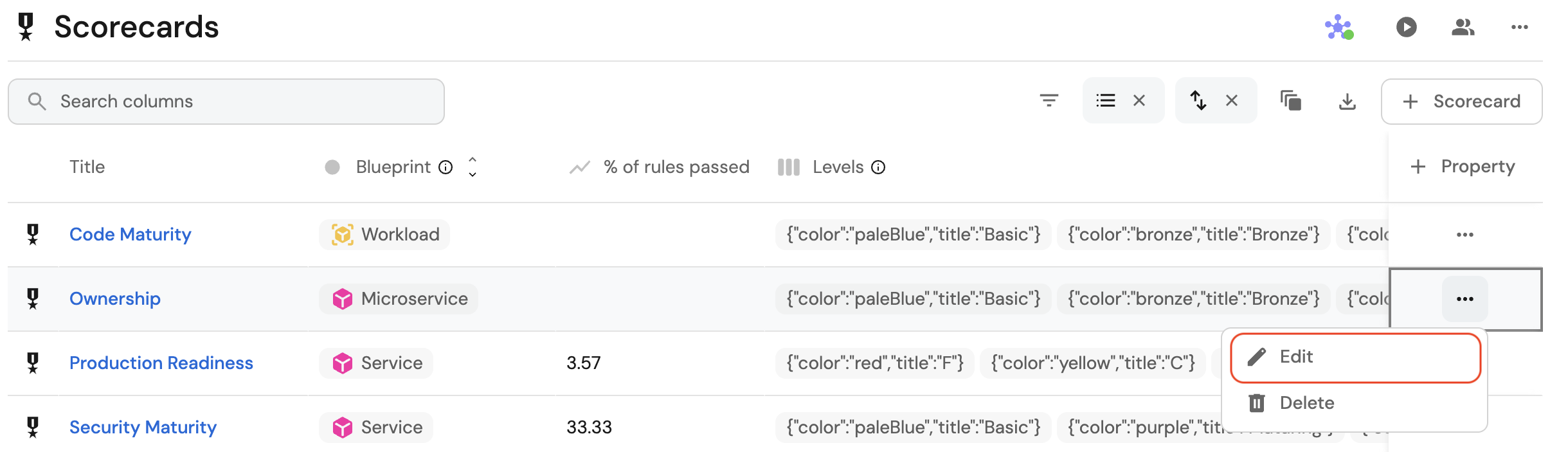
-
Edit the scorecard.
-
Click
Saveto apply your changes.
To delete a scorecard:
A Scorecard cannot be restored after deletion!
-
Click on the
...button in line that represents your scorecard in the table, then chooseDelete.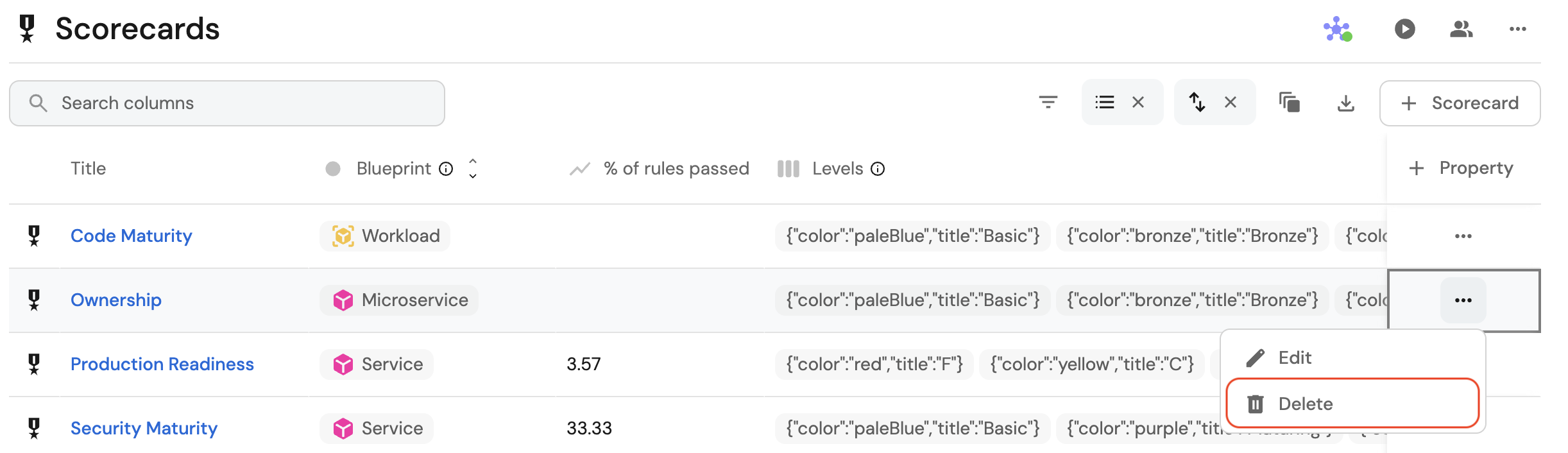
-
Confirm the deletion in the pop-up window.
Scorecard JSON structure
Instead of using the form, you can also create or edit scorecards in JSON format.
Click on the {...} Edit JSON button in the top right corner of the scorecard creation or editing form.
Below is an example of a scorecard in JSON format:Ownership scorecard example (click to expand)
{
  "identifier": "Ownership",
  "title": "Ownership",
  "rules": [
    {
      "identifier": "hasSlackChannel",
      "title": "Has Slack Channel",
      "level": "Silver",
      "query": {
        "combinator": "and",
        "conditions": [
          {
            "operator": "isNotEmpty",
              "property": "slackChannel"
          }
        ]
      }
    },
    {
      "identifier": "hasTeam",
      "title": "Has Team",
      "level": "Bronze",
      "query": {
        "combinator": "and",
        "conditions": [
          {
            "operator": "isNotEmpty",
            "property": "$team"
          }
        ]
      }
    }
  ]
}
Remember that an access token is necessary in order to make API requests. If you need to generate a new token, refer to Getting an API token.
Create scorecards
In order to create a scorecard from the API, you will make a POST request to the following URL: https://api.port.io/v1/blueprints/_scorecard/entities.
Here are some request examples that will create the Scorecard of Ownership on the microservice Blueprint:
- Python
- Javascript
Create scorecards python example (click to expand)
# Dependencies to install:
# $ python -m pip install requests

# the access_token variable should already have the token from previous examples
import requests

API_URL = 'https://api.getport.io/v1'

blueprint_name = '_scorecard'

scorecard_definition = {
    'identifier': 'Ownership',
    'title': 'Ownership',
    'properties': {
        'blueprint': 'blueprint_identifier', # The blueprint the scorecard belongs to
        'rules': [
            {
                'identifier': 'hasSlackChannel',
                'title': 'Has Slack Channel',
                'level': 'Silver',
                'query': {
                    'combinator': 'and',
                    'conditions': [
                        {'operator': 'isNotEmpty', 'property': 'slackChannel'}
                    ],
                },
            },
            {
                'identifier': 'hasTeam',
                'title': 'Has Team',
                'level': 'Bronze',
                'query': {
                    'combinator': 'and',
                    'conditions': [
                        {'operator': 'isNotEmpty', 'property': '$team'}
                    ],
                },
            },
        ],
    }
}

headers = { 'Authorization': f'Bearer {access_token}'}

response = requests.post(f'{API_URL}/blueprints/{blueprint_name}/entities', json=scorecard_definition, headers=headers,)
Create scorecards javaScript example (click to expand)
// Dependencies to install:
// $ npm install axios --save

// the accessToken variable should already have the token from previous examples

const axios = require("axios").default;

const API_URL = "https://api.getport.io/v1";

const blueprintName = "_scorecard";

const scorecard_definition =  {
        identifier: "Ownership",
        title: "Ownership",
        properties: {
          blueprint: "blueprint_identifier", // The blueprint the scorecard belongs to
          rules: [
              {
                  identifier: "hasSlackChannel",
                  title: "Has Slack Channel",
                  level: "Bronze",
                  query: {
                      combinator: "and",
                      conditions: [
                          {
                              operator: "isNotEmpty",
                              property: "slackChannel",
                          },
                      ],
                  },
              },
              {
                  identifier: "hasTeam",
                  title: "Has Team",
                  level: "Silver",
                  query: {
                      combinator: "and",
                      conditions: [
                          {
                              operator: "isNotEmpty",
                              property: "$team",
                          },
                      ],
                  },
              },
          ],
        }
    };

const config = {
    headers: {
        Authorization: `Bearer ${accessToken}`,
    },
};

const response = await axios.post(
    `${API_URL}/blueprints/${blueprintName}/entities`,
    scorecard_definition,
    config
);
After creating the scorecards, you will see a new tab in the profile entity page of each of your blueprint's entities, showing the various scorecards levels.
For example, we can create the entity below:
{
    "identifier": "cart-service",
    "title": "Cart Service",
    "icon": "Microservice",
    "properties": {
        "slackChannel": "https://slack.com",
        "repoUrl": "https://github.com"
    },
    "relations": {}
}
And then look at the specific page of this entity, on the scorecards tab.
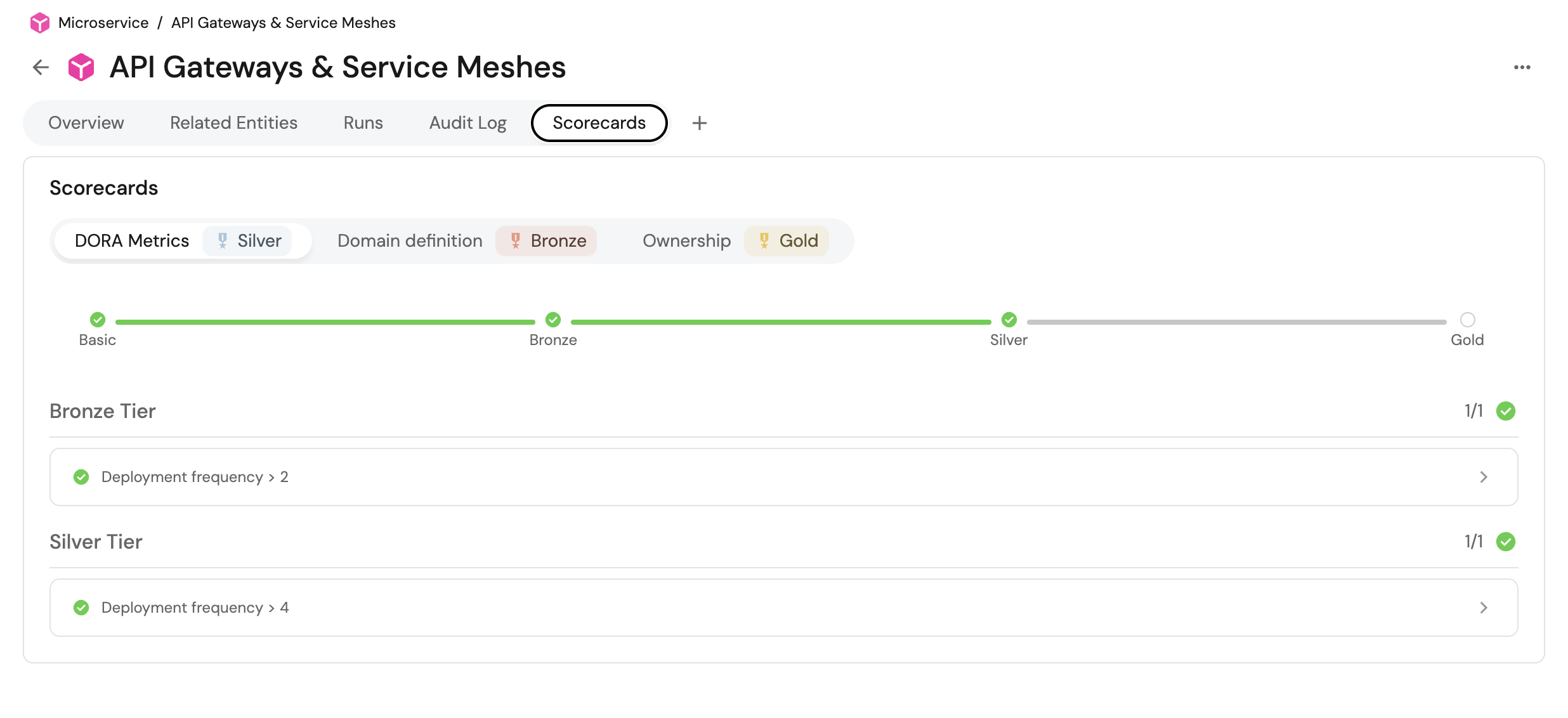
We can see that the hasSlackChannel rule passed because we provided one to that entity, while the hasTeam failed because we didn't provide any team.
Therefore the level of the entity is Bronze because it passed all the rules in the Bronze level (hasSlackChannel).
Update scorecards
In order to update a scorecard from the API, you will make a PATCH request to the following URL: https://api.port.io/v1/blueprints/_scorecard/entities/{entity_identifier}.
The request body will include the existing body of the Scorecard, after the desired updates to the existing scorecard have been applied.
Delete scorecards
A Scorecard cannot be restored after deletion!
- In order to delete a scorecard using the API, you will make a
DELETErequest to the following URL:https://api.port.io/v1/blueprints/_scorecard/entities/{entity_identifier}. - In order to delete all entities of scorecards using the API, you wil make a
DELETErequest to the following URL:https://api.port.io/v1/blueprints/_scorecard/all-entities.
Extend scorecard blueprints
Since the scorecard, scorecard rule and scorecard rule result blueprints can only be extended, to configure them using Terraform you need use the port_system_blueprint resource.
These blueprints can not be created so don't forget to import them to your Terraform state.
Create scorecards
In order to create a scorecard from the Terraform provider , you will need to use the port_entity resource.
Here is an example of how to create an Ownership scorecard with the Terraform provider:Terraform create example (click to expand)
# Create the Ownership Scorecard entity
resource "port_entity" "ownership_scorecard" {
  title      = "Ownership"
  identifier = "ownership"
  blueprint  = "_scorecard"

  properties = {
    string_props = {
      "blueprint" = "microservice"
    }

    array_props = {
      object_items = {
        "levels" = [
          jsonencode({
            color = "paleBlue"
            title = "Basic"
          }),
          jsonencode({
            color = "bronze"
            title = "Bronze"
          }),
          jsonencode({
            color = "silver"
            title = "Silver"
          }),
          jsonencode({
            color = "gold"
            title = "Gold"
          }),
        ]
      }
    }
  }
}

# Create the "Has Slack Channel" rule
resource "port_entity" "ownership_has_slack_channel_rule" {
  title      = "Has Slack Channel"
  identifier = "${port_entity.ownership_scorecard.identifier}_has_slack_channel"
  blueprint  = "_rule"

  properties = {
    string_props = {
      "level"            = "Silver"
      "rule_description" = "Checks if the microservice has a Slack channel"
    }

    object_props = {
      "query" = jsonencode({
        "combinator" = "and"
        "conditions" = [
          {
            "operator" = "isNotEmpty"
            "property" = "slackChannel"
          }
        ]
      })
    }
  }

  relations = {
    single_relations = {
      "scorecard" = port_entity.ownership_scorecard.identifier
    }
  }

  depends_on = [port_entity.ownership_scorecard]
}

# Create the "Has Team" rule
resource "port_entity" "ownership_has_team_rule" {
  title      = "Has Team"
  identifier = "${port_entity.ownership_scorecard.identifier}_has_team"
  blueprint  = "_rule"

  properties = {
    string_props = {
      "level"            = "Bronze"
      "rule_description" = "Checks if the microservice has a team assigned"
    }

    object_props = {
      "query" = jsonencode({
        "combinator" = "and"
        "conditions" = [
          {
            "operator" = "isNotEmpty"
            "property" = "$team"
          }
        ]
      })
    }
  }

  relations = {
    single_relations = {
      "scorecard" = port_entity.ownership_scorecard.identifier
    }
  }

  depends_on = [port_entity.ownership_scorecard]
}
Update scorecards
In order to update a scorecard with the Terraform provider, you will need to run the terraform apply -target=port_entity.<resourceId> command with the updated scorecard resource.
Delete Scorecards
A Scorecard cannot be restored after deletion!
In order to delete a scorecard using the Terraform provider, use the terraform destroy -target=port_entity.<resourceId> command with the scorecard resource you want to delete. (remember that it is also possible to remove the definition of the port_entity resource from the .tf file and run terraform apply)
Next steps
- Explore scorecard use-cases and automation use-cases for examples you can implement in your environment.
- Dive into advanced operations on Scorecards with our API ➡️